
Our February and March platform updates focused on removing the friction between your institution and your learning community.
Here’s a breakdown of what landed in your portal:
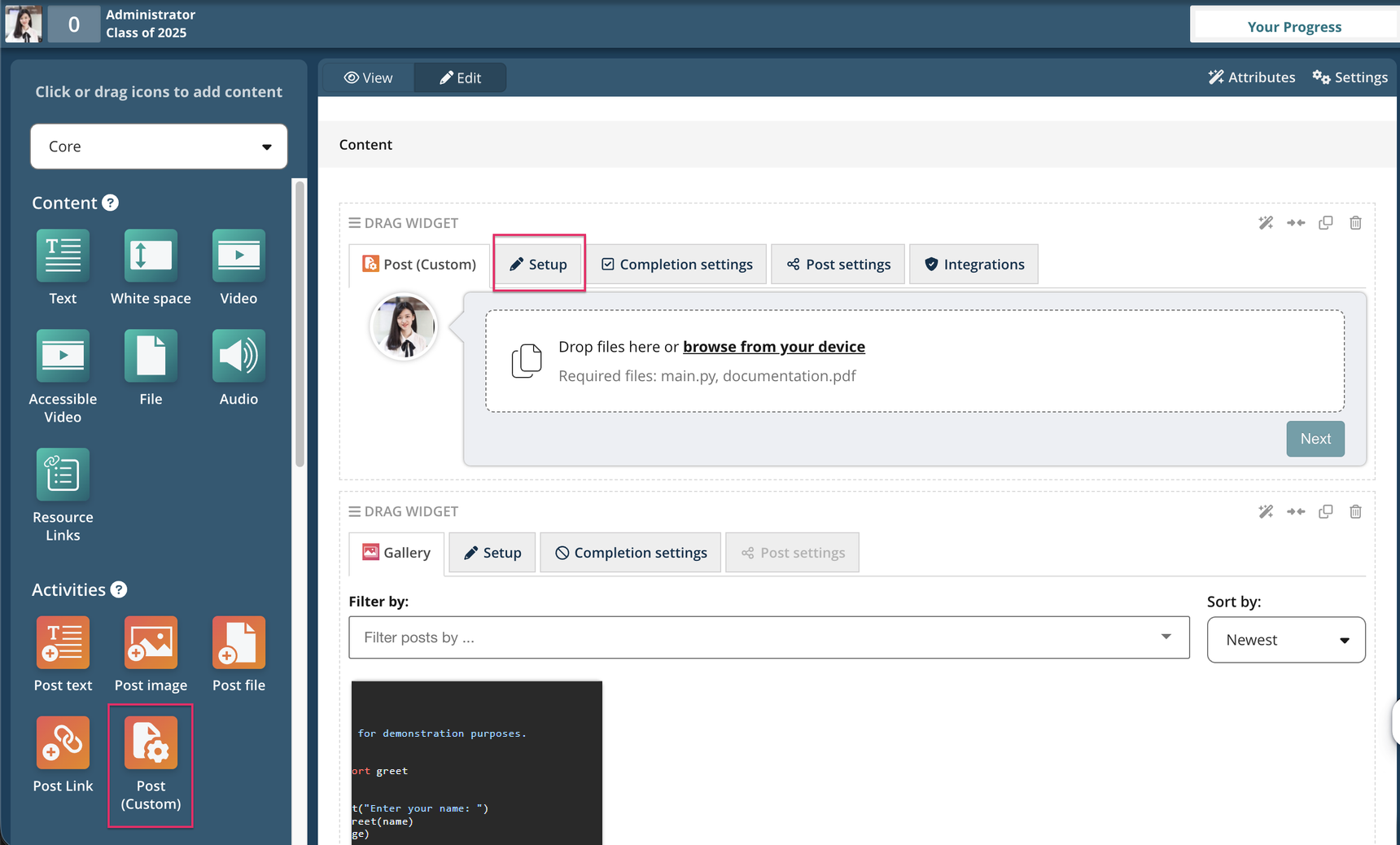
We’ve introduced Code Execution integration within the Post (Custom) widget, enabling automated code execution and feedback directly from learner submissions.
Code files submitted through Post (Custom) can now be sent to a connected Code Execution service, where execution and grading logic are defined via a configuration file. Learners receive automated results and feedback based on execution outcomes, supporting faster iteration and learning.
Support for passing scores into Gradebook and grading workflows will be available in an upcoming release.
This update enables scalable coding assessments without the need for manual review. Educators can deliver auto-graded practice activities with instant feedback, support iterative learning, and run graded coding assessments more efficiently.
It strengthens OpenLearning’s capabilities for technical and STEM education while keeping the experience fully embedded within existing learning activities.
.png?width=1720&height=1078&name=547%20(3).png)
.png?width=791&height=702&name=547%20(2).png)
Navigate to your course page and add or select a Post (Custom) widget. From there, go to the Integrations tab and select Code Execution to connect and configure the integration.
For more information, click here.
.png?width=2884&height=1440&name=image%20(8).png)
We’ve enhanced the Manage Learners and Learner Data pages within Institution Settings to better support program-based enrolments.
Educators can now enrol learners into programs directly from the View Learners table, including bulk actions, or through the Add Learners flow using new Program Quick Enrolment options. The “Recently assigned” tab has also been removed to streamline the experience.
The Learner Data page has been restructured into three tabs: Class Data, Program Data (new), and Exports. The new Program Data tab provides a clearer overview of learner progress within selected programs.
These improvements simplify learner management at scale and provide better visibility into program-level progress. Institutions can more easily manage enrolments, track learner performance, and support structured program delivery across cohorts..png?width=2884&height=1440&name=image%20(7).png)
Go to Institution Settings → Manage Learners to access enrolment options via the View Learners table or Add Learners flow.
To view learner progress, navigate to the Learner Data tab and select Program Data for program-level insights.
We’ve added a new Institution membership status within Institution Settings. A membership column is now available in the View Learners table, allowing educators to quickly identify whether a learner is an institution member or only enrolled in a course.
This update also includes improvements to the learner removal flow and extends support across API, LTI, and SAML integrations.
This provides greater clarity and control over learner access at the institutional level. Teams can more easily distinguish between internal and external learners and ensure enrolment settings align with organisational requirements.
Navigate to Institution Settings → Manage Learners → View Learners table to see the new Institution membership column and manage learner status.
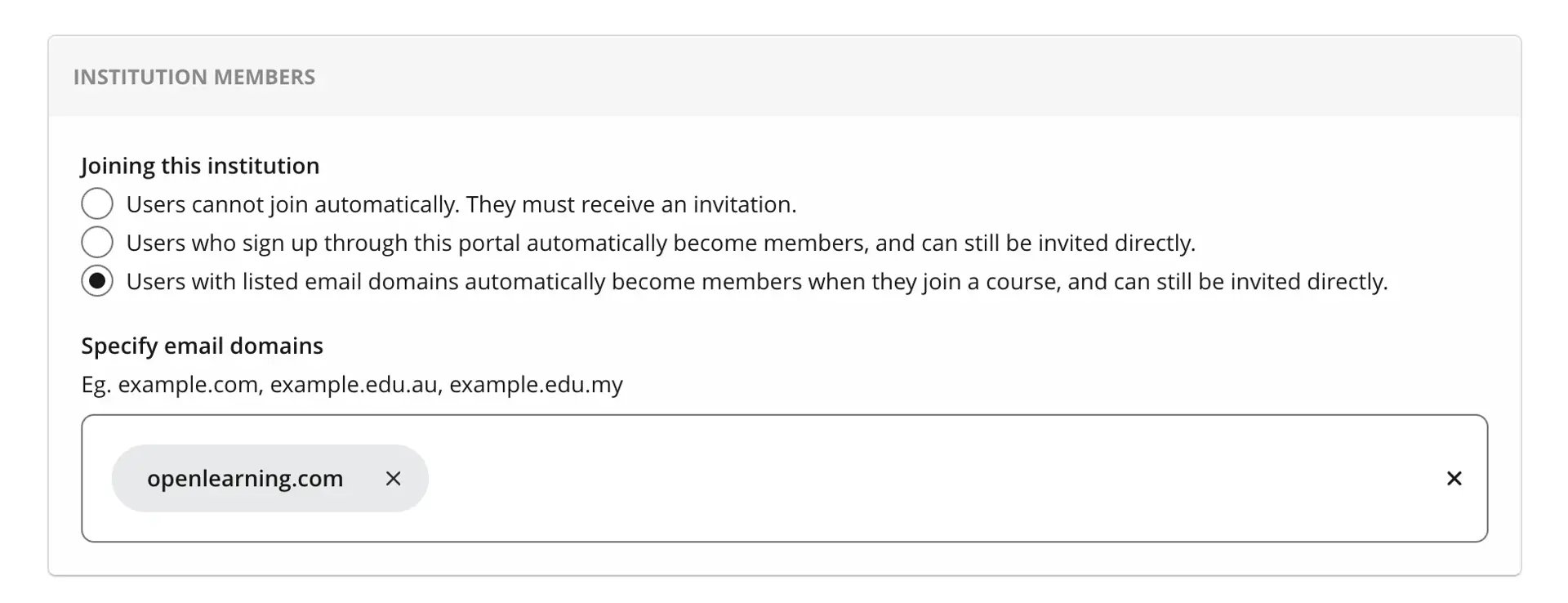
Course Admins can now restrict enrolment using the new Private: Members-only enrolment type. When enabled, only learners recognised as institution members — such as those invited or using approved email domains — can enrol in the class.
Learners who do not meet these criteria will not be able to join.
This update gives institutions a clear and flexible way to run internal-only cohorts or restricted programmes. It supports more controlled access to learning while maintaining existing enrolment workflows..webp?width=1920&height=1584&name=image%20(1).webp)
Go to Course → Classes → Create or Edit Class, then set the enrolment type to Private: Members-only.
.png?width=2346&height=1370&name=image%20(9).png)
Institution admins can now enable or disable individual Single Sign-On (SSO) options — including Microsoft, Google, Facebook, and OpenLearning username/password — directly from their settings.
This allows institutions to control exactly which login methods are available, ensuring learners only see and use approved sign-in options.
This removes the need for a one-size-fits-all login experience. Institutions can align sign-in methods with their internal policies, security requirements, and user preferences, creating a more streamlined and controlled access experience.
Navigate to Institution Settings → Institution Marketing / General → Single Sign-On Options to configure and manage available login methods.
Log in to your dashboard to try the latest features today, or reach out to the support team if you’d like help getting started.


